API Reference
A list of components, hooks, and constants provided by xrift-world-components.
Components
Interactable
Creates an object that can be clicked/interacted with.
import { Interactable } from '@xrift/world-components';

<Interactable id="my-button" onInteract={() => console.log('clicked!')}>
  <mesh>
    <boxGeometry args={[1, 1, 1]} />
    <meshStandardMaterial color="hotpink" />
  </mesh>
</Interactable>
Props
| Prop | Type | Default | Description |
|---|---|---|---|
id | string | - | Unique identifier (Required) |
onInteract | () => void | - | Callback on interaction |
children | ReactNode | - | Object to be interacted with |
Mirror
Creates a real-time reflective surface.
import { Mirror } from '@xrift/world-components';

<Mirror position={[0, 1, -5]} />
VideoScreen
Creates a screen that plays synchronized video.
import { VideoScreen } from '@xrift/world-components';

<VideoScreen src="/videos/intro.mp4" position={[0, 2, -3]} />
VideoPlayer
A video player with UI controls based on VideoScreen. It features VR-compatible control UIs such as play/pause buttons, progress bar, and volume bar.
import { VideoPlayer } from '@xrift/world-components';

<VideoPlayer
  id="my-video"
  url="https://example.com/video.mp4"
  position={[0, 2, -5]}
  width={4}
/>
Props
| Prop | Type | Default | Description |
|---|---|---|---|
id | string | - | Unique ID for the screen (Required) |
position | [number, number, number] | [0, 2, -5] | Position of the screen |
rotation | [number, number, number] | [0, 0, 0] | Rotation of the screen |
width | number | 4 | Width of the screen (Height is automatically calculated at 16:9) |
url | string | - | URL of the video |
playing | boolean | true | Initial playback state |
volume | number | 1 | Initial volume (0-1) |
sync | 'global' | 'local' | 'global' | Sync mode |
Features
- URL Input Button: Clicking the 🔗 icon displays a URL input overlay, allowing dynamic switching of the video source.
- Play/Pause Button: Toggle playback state with the ▶/|| icon.
- Progress Bar: A progress bar divided into 20 segments. Click to return to the beginning of the video.
- Volume Bar: Adjusts from 0-100% in increments of 10. Displays mute status with 🔈/🔇 icons.
- VR Support: Supports VR controller operation using
Interactable.
You can select the sync mode with the sync property:
'global': Synchronize playback state across all users (Default)'local': Each user controls playback independently
LiveVideoPlayer
A video player that supports live streaming playback such as HLS/DASH. While having similar UI controls to VideoPlayer, it is optimized for live streaming.
import { LiveVideoPlayer } from '@xrift/world-components';

<LiveVideoPlayer
  id="my-live"
  url="https://example.com/live/stream.m3u8"
  position={[0, 2, -5]}
  width={4}
/>
Props
| Prop | Type | Default | Description |
|---|---|---|---|
id | string | - | Unique ID for the screen (Required) |
position | [number, number, number] | [0, 2, -5] | Position of the screen |
rotation | [number, number, number] | [0, 0, 0] | Rotation of the screen |
width | number | 4 | Width of the screen (Height is automatically calculated at 16:9) |
url | string | - | Stream URL (HLS/DASH supported) |
playing | boolean | true | Initial playback state |
volume | number | 1 | Initial volume (0-1) |
Features
- URL Input Button: Clicking the 🔗 icon displays a URL input overlay, allowing dynamic switching of the stream source.
- Play/Pause Button: Toggle playback state with the ▶/|| icon.
- Volume Bar: Adjusts from 0-100% in increments of 10. Displays mute status with 🔈/🔇 icons.
- VR Support: Supports VR controller operation using
Interactable.
Since LiveVideoPlayer is designed for live streaming, it does not have a progress bar (seek function). Please use VideoPlayer for playing recorded videos.
ScreenShareDisplay
Displays the screen sharing video as a screen in the 3D space. It retrieves video and status from ScreenShareContext.
import { ScreenShareDisplay } from '@xrift/world-components';

<ScreenShareDisplay id="screen-1" position={[0, 2, -5]} />
Props
| Prop | Type | Default | Description |
|---|---|---|---|
id | string | - | Unique ID for the screen (Required) |
position | [number, number, number] | [0, 0, 0] | Position of the screen |
rotation | [number, number, number] | [0, 0, 0] | Rotation of the screen |
width | number | 4 | Width of the screen (Height is automatically calculated at 16:9) |
The aspect ratio of the video is automatically maintained. Video other than 16:9 will be displayed correctly with black bars.
Only one screen can be shared per world. While it is possible to place multiple ScreenShareDisplay components, they will all display the same screen.
SpawnPoint
Specifies the point where players spawn in the world.
import { SpawnPoint } from '@xrift/world-components';

<SpawnPoint />
<SpawnPoint position={[0, 0, 5]} yaw={180} />
Props
| Prop | Type | Default | Description |
|---|---|---|---|
position | [number, number, number] | [0, 0, 0] | Spawn position |
yaw | number | 0 | Orientation at spawn (degrees 0-360) |
In the development environment, the spawn position and direction are visualized with a semi-transparent cylinder (gradient transparency from bottom to top) and an arrow. The helper is not displayed in the production build.
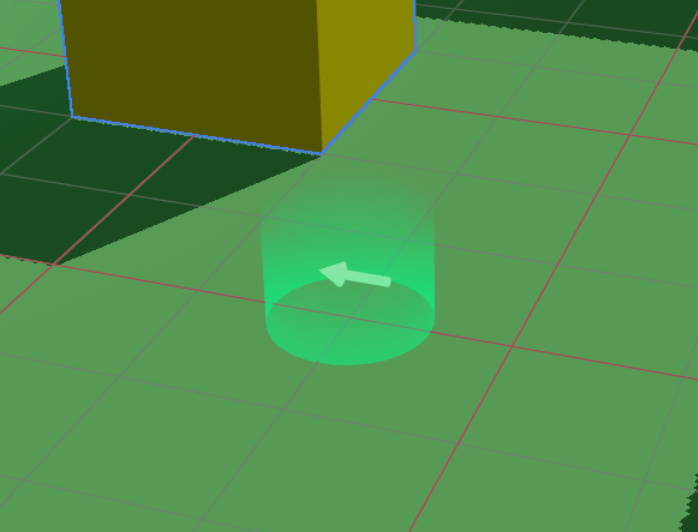
If multiple SpawnPoint components are placed, the one set last takes effect.
TextInput
A component that enables text input in 3D space. You can customize the appearance freely using the children method.
import { TextInput } from '@xrift/world-components';

<TextInput
  id="my-input"
  value={inputValue}
  onSubmit={handleSubmit}
  placeholder="Enter text..."
>
  <mesh>
    <boxGeometry args={[1, 0.5, 0.1]} />
    <meshStandardMaterial color="#333" />
  </mesh>
</TextInput>
Props
| Prop | Type | Default | Description |
|---|---|---|---|
id | string | - | Unique ID for the input field (Required) |
children | ReactNode | - | 3D object (Appearance) (Required) |
placeholder | string | - | Placeholder text |
maxLength | number | - | Maximum number of characters |
value | string | - | Current value |
onSubmit | (value: string) => void | - | Callback on input completion |
interactionText | string | 'Click to enter' | Text to display on interaction |
disabled | boolean | false | Whether to disable input |
Mechanism
The TextInput component operates with the following architecture:
- TextInput: Displays the 3D object passed as children as a clickable input field.
- Overlay Input: Upon clicking, a 2D text input UI is displayed as an overlay to accept actual input.
- XRiftContext Integration: world-components requests the overlay display via XRiftContext.
By passing any 3D object to children, you can freely customize the appearance of the input field. You can achieve button-like designs or looks that match the world's atmosphere.
The platform side uses the following APIs to implement TextInput behavior:
TextInputContextuseTextInputContextTextInputContextValueTextInputRequest
TagBoard
A component that handles tags selected by users locally/globally, providing a board UI (TagSelector) and tag display above each user's head (TagDisplay).
import { TagBoard } from '@xrift/world-components';

<TagBoard
  instanceStateKey="main-tag-board"
  position={[0, 1.5, -3]}
/>
Props
| Prop | Type | Default | Description |
|---|---|---|---|
tags | Tag[] | Default tag list | Tags to display/select |
columns | number | 3 | Number of display columns |
title | string | "Select Tag" | Title text |
instanceStateKey | string | - | Instance state key (Required, for identification when placing multiple boards) |
position | [number, number, number] | [0, 0, 0] | Position of the board |
rotation | [number, number, number] | [0, 0, 0] | Rotation of the board |
scale | number | 1 | Overall scale |
Tag Type Definition
interface Tag {
  id: string;      // Unique identifier for the tag
  label: string;   // Display label
  color: string;   // Color (HEX format)
}
Default Tag List
If the tags property is omitted, the following tags are used:
[
  { color: "#2ECC71", id: "want-talk", label: "Want to talk" },
  { color: "#3498DB", id: "want-listen", label: "Want to listen" },
  { color: "#95A5A6", id: "silent", label: "Silent" },
  { color: "#1ABC9C", id: "developer", label: "Developer" },
  { color: "#2980B9", id: "student", label: "Student" },
  { color: "#F1C40F", id: "beginner", label: "Beginner" },
  { color: "#9B59B6", id: "dont-know", label: "Don't know anything" },
  { color: "#8BC34A", id: "working", label: "Working" },
  { color: "#BF7B41", id: "away", label: "Away" },
  { color: "#FF9800", id: "cat", label: "Cat" },
]
Usage Example
Using Custom Tags
import { TagBoard, type Tag } from '@xrift/world-components';

const customTags: Tag[] = [
  { id: "frontend", label: "Frontend", color: "#61DAFB" },
  { id: "backend", label: "Backend", color: "#68A063" },
  { id: "design", label: "Design", color: "#FF6B6B" },
  { id: "pm", label: "PM", color: "#9B59B6" },
];

export const MyWorld = () => {
  return (
    <TagBoard
      tags={customTags}
      columns={2}
      title="What is your role?"
      instanceStateKey="role-tag-board"
      position={[0, 1.5, -3]}
      rotation={[0, 0, 0]}
      scale={1.2}
    />
  );
};
instanceStateKey must be unique within the same world. If placing multiple TagBoards, specify a different instanceStateKey for each.
UsersContextis required (used for retrieving user information).- Uses
useInstanceStatehook internally (synchronization of tag selection state).
DevEnvironment
A component that provides a local development environment. Used in the world template's dev.tsx.
This component is for local preview when running npm run dev in a world development project. Do not use it inside actual world content such as World.tsx.
import { DevEnvironment, XRiftProvider } from '@xrift/world-components'
import { World } from './World'
import xriftConfig from '../xrift.json'

createRoot(rootElement).render(
  <StrictMode>
    <XRiftProvider baseUrl="/">
      <DevEnvironment
        physicsConfig={xriftConfig.world?.physics}
        camera={{ near: xriftConfig.world?.camera?.near, far: xriftConfig.world?.camera?.far }}
      >
        <World />
      </DevEnvironment>
    </XRiftProvider>
  </StrictMode>
)
Props
| Prop | Type | Default | Description |
|---|---|---|---|
children | ReactNode | - | World content (Required) |
camera | { position?: [x, y, z]; fov?: number; near?: number; far?: number } | { fov: 50, near: 0.01, far: 1000 } | Camera settings |
moveSpeed | number | 5.0 | Movement speed |
shadows | boolean | true | Enable/disable shadows |
spawnPosition | [x, y, z] | [0.11, 1.6, 7.59] | Spawn position |
respawnThreshold | number | -10 | Y-coordinate threshold for respawn |
physicsConfig | PhysicsConfig | - | Physics settings |
CameraConfig
Clipping distances configurable via the camera prop. Corresponds to the world.camera settings in xrift.json.
| Prop | Type | Default | Description |
|---|---|---|---|
near | number | 0.01 | Near clipping distance |
far | number | 1000 | Far clipping distance |
PhysicsConfig
| Prop | Type | Default | Description |
|---|---|---|---|
gravity | number | 9.81 | Gravitational acceleration |
allowInfiniteJump | boolean | true | Allow infinite jumping |
Features
- First-Person Player: Physics-based WASD movement, jumping, and respawning
- View Controls: View manipulation via PointerLockControls
- Interaction: Raycasting to INTERACTABLE layer + click interaction
- Crosshair UI: Center-screen crosshair (highlights on hit)
- Guide UI: Pointer lock state guidance UI
- Controls Help UI: UI displaying control instructions
Controls
| Input | Description |
|---|---|
| Click | Start pointer lock / Interact |
| WASD / Arrow Keys | Movement |
| Space / E | Jump |
| ESC | Release pointer lock |
Installation of @react-three/rapier (^2.0.0) is required (optional peerDependency).
Portal
A component that displays a portal for moving to another instance. It consists of a swirl shader effect, destination thumbnail/world name/instance name/user count, particles, glow, and a clickable pedestal.
When instanceId is specified, it automatically fetches and displays information about the target instance. Clicking the pedestal triggers a confirmation modal (useConfirm) before transitioning to the target instance.
import { Portal } from '@xrift/world-components'

function MyWorld() {
  return (
    <Portal
      instanceId="ceffb128-23c7-4120-b4e6-19bf6c604c47"
      position={[5, 0, 0]}
      rotation={[0, Math.PI / 2, 0]}
    />
  )
}
Props
| Prop | Type | Default | Description |
|---|---|---|---|
instanceId | string | - | ID of the destination instance (Required) |
position | [number, number, number] | [0, 0, 0] | Position of the portal |
rotation | [number, number, number] | [0, 0, 0] | Rotation of the portal |
The instance ID is a UUID found in the instance page URL. For example, in https://app.xrift.net/instance/ceffb128-23c7-4120-b4e6-19bf6c604c47, the instance ID is ceffb128-23c7-4120-b4e6-19bf6c604c47.
Portal internally uses the useInstance hook to fetch instance information and handle navigation.
Hooks
useInstanceState
Synchronizes state across all users in the instance. It has the same interface as React's useState.
import { useInstanceState } from '@xrift/world-components';

function Counter() {
  const [count, setCount] = useInstanceState('counter', 0);

  return (
    <mesh onClick={() => setCount(count + 1)}>
      {/* count is synchronized across all users */}
    </mesh>
  );
}
Arguments
| Argument | Type | Description |
|---|---|---|
key | string | Unique identifier for the state |
initialValue | T | Initial value |
Return Value
[value: T, setValue: (newValue: T) => void] - Same format as useState
useInstanceEvent
A hook for sending and receiving instance events. You can receive platform events (user-joined, user-left) and send/receive custom world events.
import { useInstanceEvent } from '@xrift/world-components';

// Receive platform events (receive only, cannot emit)
useInstanceEvent('user-joined', (data) => {
  console.log('User joined:', data)
})

// Send and receive custom events
const emitReaction = useInstanceEvent('reaction', (data) => {
  console.log('Reaction received:', data)
})
emitReaction({ emoji: '👍', userId: 'user-1' })
Arguments
| Argument | Type | Description |
|---|---|---|
eventName | string | Event name |
callback | (data: T) => void | Callback when event is received |
Return Value
(data: T) => void - Event emit function. Returns a no-op for platform reserved events (user-joined, user-left).
Event Types
| Type | Event Name | Send | Receive | Description |
|---|---|---|---|---|
| Platform | user-joined | - | ✅ | User joined the instance |
| Platform | user-left | - | ✅ | User left the instance |
| Custom | Any string | ✅ | ✅ | World-specific events |
Use Cases
Reaction System
import { useInstanceEvent } from '@xrift/world-components';
import { useCallback, useState } from 'react';

function ReactionSystem() {
  const [reactions, setReactions] = useState<{ emoji: string }[]>([]);

  const emitReaction = useInstanceEvent('reaction', (data: { emoji: string }) => {
    setReactions(prev => [...prev, data]);
  });

  const sendReaction = useCallback((emoji: string) => {
    emitReaction({ emoji });
  }, [emitReaction]);

  return (
    <mesh onClick={() => sendReaction('👍')}>
      <boxGeometry args={[1, 1, 0.2]} />
      <meshStandardMaterial color="yellow" />
    </mesh>
  );
}
Join/Leave Detection
import { useInstanceEvent } from '@xrift/world-components';

function JoinLeaveNotifier() {
  useInstanceEvent('user-joined', (data) => {
    console.log('User joined:', data);
  });

  useInstanceEvent('user-left', (data) => {
    console.log('User left:', data);
  });

  return null;
}
- useInstanceEvent: Best for transient event notifications (reactions, effect triggers, etc.).
- useInstanceState: Best for persistent synchronized state (counters, ON/OFF states, etc.).
In the development environment, a local EventEmitter is used, so events are only sent and received within the same browser. In production, the platform injects a WebSocket implementation, and events are shared across all users in the instance.
useScreenShareContext
A hook to retrieve the state of screen sharing.
import { useScreenShareContext } from '@xrift/world-components';

function MyComponent() {
  const { videoElement, isSharing, startScreenShare, stopScreenShare } = useScreenShareContext();

  return (
    <button onClick={isSharing ? stopScreenShare : startScreenShare}>
      {isSharing ? 'Stop Sharing' : 'Start Sharing'}
    </button>
  );
}
Return Value
| Property | Type | Description |
|---|---|---|
videoElement | HTMLVideoElement | null | Video element to display |
isSharing | boolean | Whether the user is sharing |
startScreenShare | () => void | Start sharing |
stopScreenShare | () => void | Stop sharing |
useSpawnPoint
A hook for the platform side to retrieve spawn point information.
import { useSpawnPoint } from '@xrift/world-components';

function MyPlatform() {
  const spawnPoint = useSpawnPoint();
  // spawnPoint: { position: [x, y, z], yaw: number }
}
Return Value
| Property | Type | Description |
|---|---|---|
position | [number, number, number] | Spawn position |
yaw | number | Orientation at spawn (degrees) |
This hook is intended for use on the xrift-frontend (platform) side. World developers should use the SpawnPoint component.
useUsers
A hook to retrieve information and location of users participating in the world. You can access information about yourself (local user) and other participants (remote users).
import { useUsers } from '@xrift/world-components';

function ParticipantCount() {
  const { localUser, remoteUsers, getMovement, getLocalMovement } = useUsers();

  const totalCount = (localUser ? 1 : 0) + remoteUsers.length;

  return (
    <div>
      <p>Participants: {totalCount}</p>
    </div>
  );
}
Return Value
| Property | Type | Description |
|---|---|---|
localUser | User | null | Information about yourself |
remoteUsers | User[] | Array of information about other participants |
getMovement | (id: string) => PlayerMovement | undefined | Retrieve location information of a specific user |
getLocalMovement | () => PlayerMovement | Retrieve your own location information |
User Type
interface User {
  id: string;              // User ID
  displayName: string;     // Display name
  userIconUrl: string | null; // Avatar icon URL
  isGuest: boolean;        // Whether the user is a guest
}
PlayerMovement Type
interface PlayerMovement {
  position: { x: number; y: number; z: number };
  direction: { x: number; z: number };
  horizontalSpeed: number;
  verticalSpeed: number;
  rotation: { yaw: number; pitch: number };
  isGrounded: boolean;
  isJumping: boolean;
  isInVR?: boolean;
  vrTracking?: VRTrackingData;
}
Retrieving Position in useFrame
getMovement() and getLocalMovement() can be called every frame within useFrame. These functions allow retrieving the latest position information without triggering re-renders.
import { useUsers } from '@xrift/world-components';
import { useFrame } from '@react-three/fiber';
import { useRef } from 'react';
import { Group } from 'three';

function FollowCamera() {
  const groupRef = useRef<Group>(null);
  const { getLocalMovement } = useUsers();

  useFrame(() => {
    const movement = getLocalMovement();
    if (!groupRef.current) return;

    // Place an object slightly above your position
    groupRef.current.position.set(
      movement.position.x,
      movement.position.y + 3,
      movement.position.z
    );
  });

  return (
    <group ref={groupRef}>
      <pointLight intensity={1} />
    </group>
  );
}
Use Cases
Display HUD above User's Head
import { useUsers } from '@xrift/world-components';
import { useFrame } from '@react-three/fiber';
import { useRef } from 'react';
import { Group } from 'three';
import { Text } from '@react-three/drei';

function UserHUD({ user, getMovement }) {
  const groupRef = useRef<Group>(null);

  useFrame(() => {
    const movement = getMovement(user.id);
    if (!movement || !groupRef.current) return;

    // Place above the user's head
    groupRef.current.position.set(
      movement.position.x,
      movement.position.y + 2,
      movement.position.z
    );
  });

  return (
    <group ref={groupRef}>
      <Text fontSize={0.2}>{user.displayName}</Text>
    </group>
  );
}

function UserHUDs() {
  const { remoteUsers, getMovement } = useUsers();

  return (
    <>
      {remoteUsers.map(user => (
        <UserHUD key={user.id} user={user} getMovement={getMovement} />
      ))}
    </>
  );
}
Detect Nearby Users
import { useUsers } from '@xrift/world-components';
import { useFrame } from '@react-three/fiber';
import { useState } from 'react';

function ProximityDetector() {
  const { remoteUsers, getMovement, getLocalMovement } = useUsers();
  const [nearbyUsers, setNearbyUsers] = useState<string[]>([]);

  useFrame(() => {
    const myPos = getLocalMovement().position;
    const nearby: string[] = [];

    remoteUsers.forEach(user => {
      const movement = getMovement(user.id);
      if (!movement) return;

      const distance = Math.sqrt(
        Math.pow(myPos.x - movement.position.x, 2) +
        Math.pow(myPos.y - movement.position.y, 2) +
        Math.pow(myPos.z - movement.position.z, 2)
      );

      if (distance < 5) {
        nearby.push(user.displayName);
      }
    });

    // Update only if the array content changes
    if (JSON.stringify(nearby) !== JSON.stringify(nearbyUsers)) {
      setNearbyUsers(nearby);
    }
  });

  return null;
}
Calculate Distance Between Users
import { useUsers } from '@xrift/world-components';
import { useFrame } from '@react-three/fiber';
import { useRef } from 'react';
import { Line } from '@react-three/drei';

function DistanceLine({ targetUser, getMovement, getLocalMovement }) {
  const lineRef = useRef<any>(null);

  useFrame(() => {
    const myPos = getLocalMovement().position;
    const targetMovement = getMovement(targetUser.id);
    if (!targetMovement || !lineRef.current) return;

    lineRef.current.geometry.setPositions([
      myPos.x, myPos.y + 1, myPos.z,
      targetMovement.position.x, targetMovement.position.y + 1, targetMovement.position.z
    ]);
  });

  return (
    <Line
      ref={lineRef}
      points={[[0, 0, 0], [0, 0, 0]]}
      color="yellow"
      lineWidth={2}
    />
  );
}
getMovement() and getLocalMovement() are safe to call every frame within useFrame. They return internally cached values, so the performance impact is minimal.
The remoteUsers array is updated only when users join or leave. Changes in user positions do not trigger re-renders. Always use getMovement() to retrieve position information.
useTeleport
A hook for teleporting your own avatar to a specified position. Supports use cases such as portals, elevators, and warp zones.
import { useTeleport } from '@xrift/world-components';

function MyComponent() {
  const { teleport } = useTeleport();

  const handleTeleport = useCallback(() => {
    teleport({ position: [50, 0, 30], yaw: 180 });
  }, [teleport]);
}
API
interface TeleportDestination {
  position: [number, number, number]
  yaw?: number // Degrees (0-360). Maintains current orientation when omitted
}

const { teleport } = useTeleport()
Parameters (TeleportDestination)
| Parameter | Type | Required | Description |
|---|---|---|---|
position | [number, number, number] | Yes | Teleport destination coordinates [x, y, z] |
yaw | number | No | Orientation after teleport (degrees 0-360). Maintains current orientation when omitted |
Usage Example
Teleport with a Portal
import { useTeleport, Interactable } from '@xrift/world-components'
import { useCallback } from 'react'

function MyWorld() {
  const { teleport } = useTeleport()

  const handlePortal = useCallback(() => {
    teleport({ position: [50, 0, 30], yaw: 180 })
  }, [teleport])

  return (
    <Interactable id="portal" onInteract={handlePortal}>
      <mesh>
        <torusGeometry />
        <meshStandardMaterial color="purple" />
      </mesh>
    </Interactable>
  )
}
When yaw is omitted, the player's current orientation is maintained after teleporting. Only specify it when you want the player to face a specific direction.
useConfirm
A hook for displaying a confirmation modal to the user. Use it to ask for confirmation before important actions such as world navigation.
import { useConfirm } from '@xrift/world-components';

function MyComponent() {
  const { requestConfirm } = useConfirm();

  const handleAction = async () => {
    const ok = await requestConfirm({ message: 'Move to another world?' });
    if (ok) {
      // Proceed with the action
    }
  };
}
Returns
| Property | Type | Description |
|---|---|---|
requestConfirm | (options: ConfirmOptions) => Promise<boolean> | Display a confirmation modal and return the result |
ConfirmOptions
| Property | Type | Required | Description |
|---|---|---|---|
message | string | Yes | Message displayed to the user |
title | string | No | Dialog title |
confirmLabel | string | No | Label for the confirm button |
cancelLabel | string | No | Label for the cancel button |
Usage Example
Confirm before navigating to an external site
import { useConfirm, Interactable } from '@xrift/world-components'

function ExternalLink() {
  const { requestConfirm } = useConfirm()

  const handleClick = async () => {
    const ok = await requestConfirm({
      title: 'Navigate to external site',
      message: 'You are about to leave this world. Continue?',
      confirmLabel: 'Go',
      cancelLabel: 'Cancel',
    })
    if (ok) {
      window.open('https://example.com', '_blank')
    }
  }

  return (
    <Interactable id="external-link" onInteract={handleClick}>
      <mesh>
        <boxGeometry args={[1, 1, 0.2]} />
        <meshStandardMaterial color="cyan" />
      </mesh>
    </Interactable>
  )
}
On mobile browsers like iPhone, window.open and external site navigation are blocked unless triggered by a user gesture. By using useConfirm to display a confirmation dialog, you create a user-gesture event chain that allows navigation to proceed without being blocked.
The Portal component internally uses useConfirm via the useInstance hook. When using Portal, you don't need to call useConfirm directly.
useInstance
A hook that provides instance information retrieval and navigation with confirmation. It internally uses useConfirm to display a confirmation modal before navigation.
import { useInstance } from '@xrift/world-components'

function MyComponent() {
  const { info, navigateWithConfirm } = useInstance('target-instance-id')

  if (!info) return null

  return (
    <mesh onClick={navigateWithConfirm}>
      {/* Instance name: {info.name} */}
    </mesh>
  )
}
Arguments
| Argument | Type | Description |
|---|---|---|
instanceId | string | ID of the instance to retrieve |
Return Value
| Property | Type | Description |
|---|---|---|
info | InstanceInfo | null | Instance information (null before fetching) |
navigateWithConfirm | () => Promise<void> | Navigate to instance with confirmation modal |
InstanceInfo Type
| Field | Type | Description |
|---|---|---|
id | string | Instance ID |
name | string | Instance name |
description | string | null | Description |
currentUsers | number | Current number of users |
maxCapacity | number | Maximum capacity |
isPublic | boolean | Whether it is public |
allowGuests | boolean | Whether guests are allowed |
owner | { id, displayName, userIconUrl? } | Owner information (optional) |
world | WorldInfo | Information about the world it belongs to |
useWorld
A hook that provides world information retrieval.
import { useWorld } from '@xrift/world-components'

function MyComponent() {
  const { info } = useWorld('target-world-id')

  if (!info) return null

  return (
    <mesh>
      {/* World name: {info.name} */}
    </mesh>
  )
}
Arguments
| Argument | Type | Description |
|---|---|---|
worldId | string | ID of the world to retrieve |
Return Value
| Property | Type | Description |
|---|---|---|
info | WorldInfo | null | World information (null before fetching) |
WorldInfo Type
| Field | Type | Description |
|---|---|---|
id | string | World ID |
name | string | World name |
description | string | null | Description |
thumbnailUrl | string | null | Thumbnail URL |
isPublic | boolean | Whether it is public |
instanceCount | number | Number of instances |
totalVisitCount | number | Total visit count |
uniqueVisitorCount | number | Unique visitor count |
favoriteCount | number | Favorite count |
owner | { id, displayName, userIconUrl? } | Owner information (optional) |
permissions | { allowedDomains: string[], allowedCodeRules: string[] } | undefined | Permissions required by the world (details) |
Constants
LAYERS
Constants utilizing Three.js's layer system. Used for configuring layers on cameras and Raycasters.
import { LAYERS } from '@xrift/world-components';
| Constant | Value | Description |
|---|---|---|
LAYERS.DEFAULT | 0 | Default layer (all objects belong to this layer initially) |
LAYERS.FIRST_PERSON_ONLY | 9 | First-person view only (for VRMFirstPerson) |
LAYERS.THIRD_PERSON_ONLY | 10 | Third-person view only (for VRMFirstPerson) |
LAYERS.INTERACTABLE | 11 | Interactable objects (Raycast targets) |
Related Types
type LayerName = 'DEFAULT' | 'FIRST_PERSON_ONLY' | 'THIRD_PERSON_ONLY' | 'INTERACTABLE';
type LayerNumber = 0 | 9 | 10 | 11;
Use Cases
- Setting layers for detecting interaction targets with Raycaster
- Switching between first-person/third-person views in VR mode